Your download should start automatically...
If it doesn't, click here.
PLEASE READ
THIS IS VERY IMPORTANT FOR INSTALLATION
Do not skip these two steps!
Installation Instructions
1 Windows SmartScreen
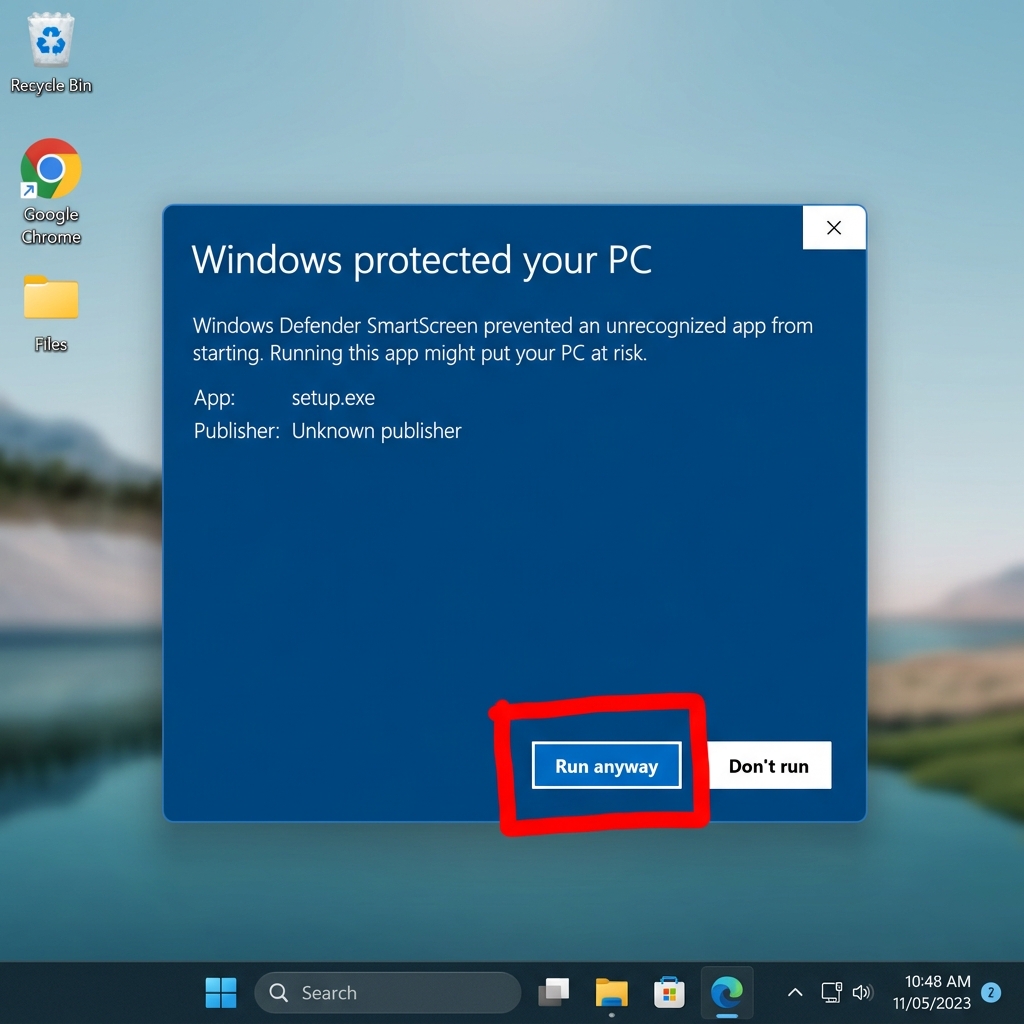
When you run the installer, you might see a blue "Windows protected your PC" screen. This is normal for new software.
Note: The "Run anyway" button is initially hidden!
- First, you MUST click on the underlined text that says "More info".
- Then, the Run anyway button will appear at the bottom. Click it to continue.
2 Windows Defender Firewall
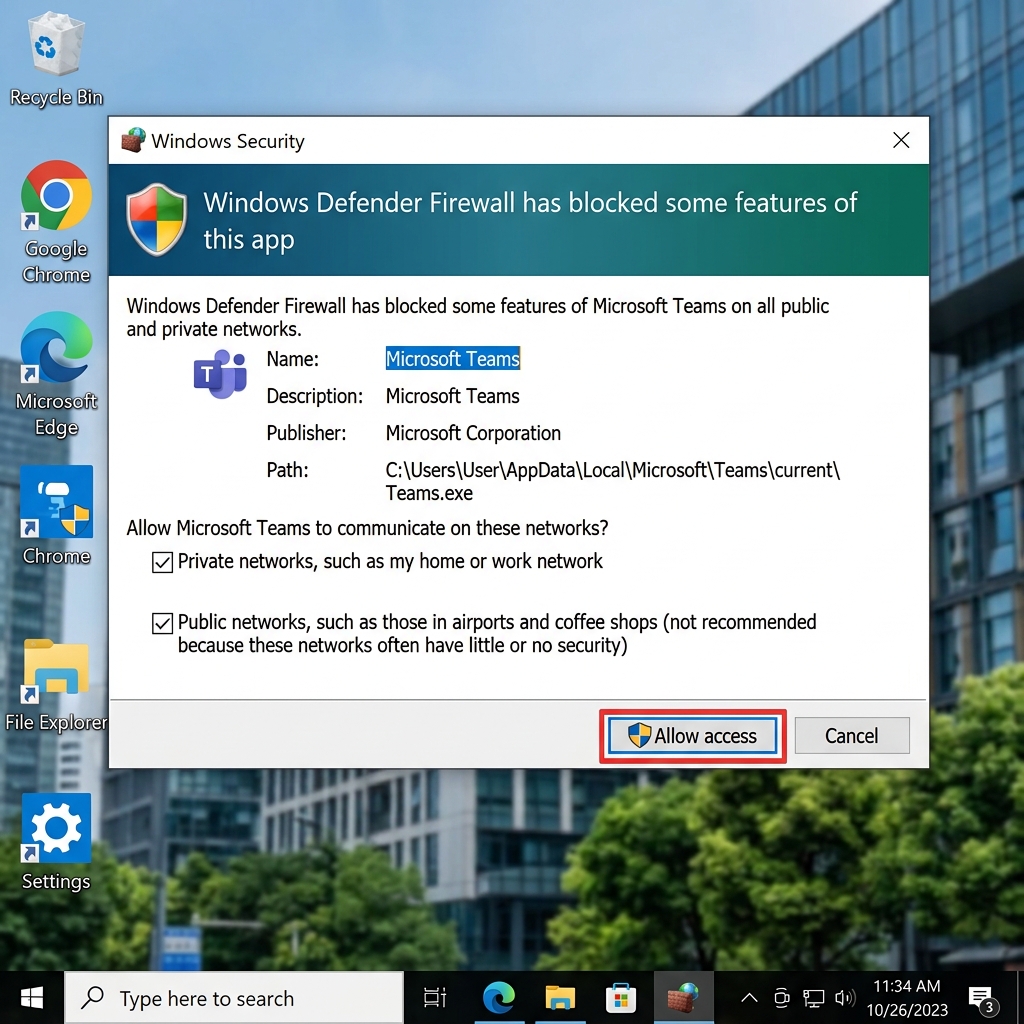
After installation, when you run ClinicSync AI for the first time, your firewall might ask for permission.
- Check the box for "Private networks".
- Click on "Allow access".